
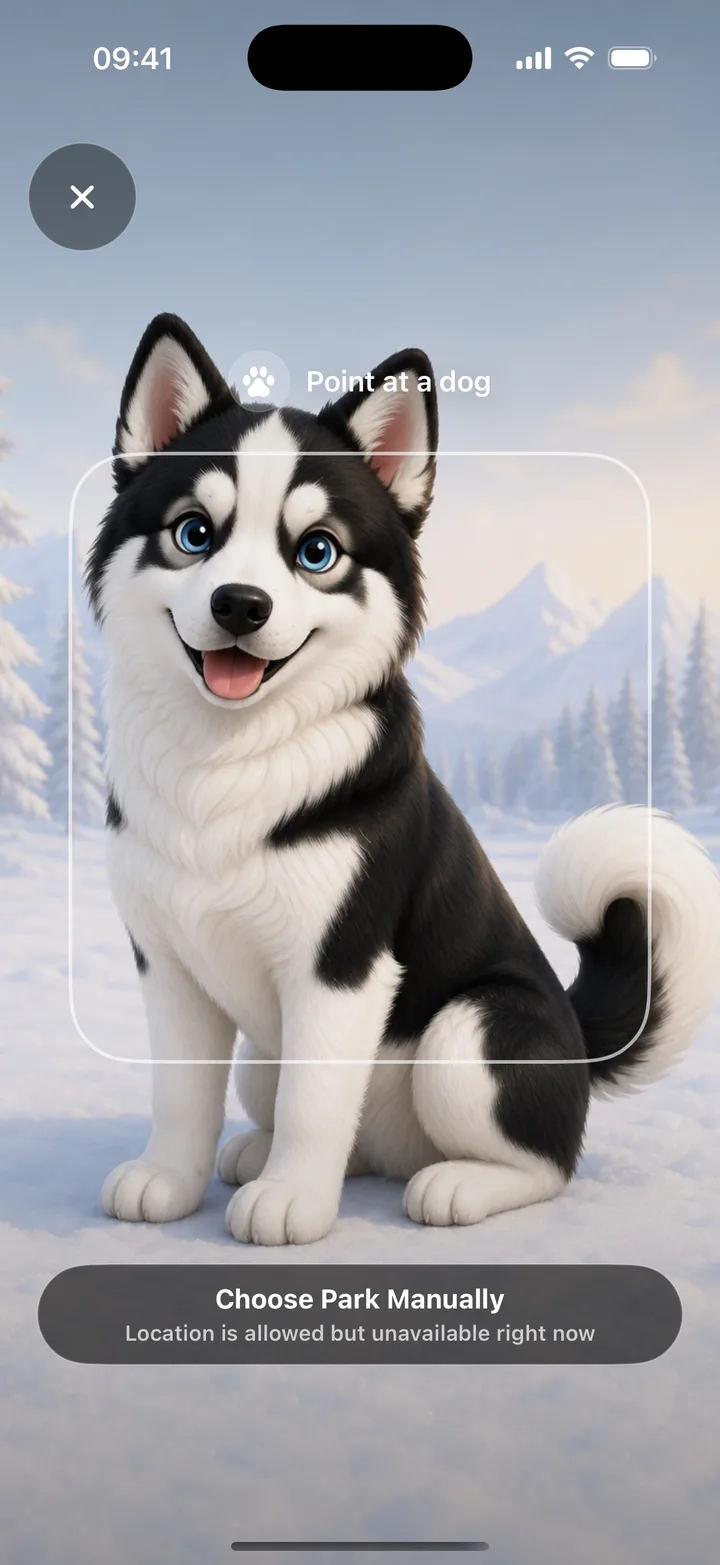
Identify a dog breed from your camera or a photo
Open the scanner and frame one dog clearly. GoFetch begins scanning when it sees a stable dog-shaped subject, then suggests a breed. You can also choose an existing photo instead of using the camera live.
The best starting point is a clear image in good light. Keep the dog in focus and give it space: you do not need to interrupt a walk or get close to a dog that does not want to meet you. Use photos you have permission to use.
A useful suggestion, with room for correction
A breed identifier works from appearance, so its answer is an estimate. Mixed breeds, puppies, distant dogs and poor lighting can make a match less reliable. A photo cannot verify pedigree or tell you everything about a dog’s ancestry.
Check the suggestion before saving and correct it if needed. If you cannot find the right breed or crossbreed, you can suggest one in the app. Treat the scanner as a way to explore and learn, rather than proof of a dog’s breed.
Build your own illustrated DogDex
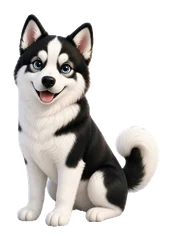
A new breed becomes another illustrated card in your DogDex. Over time, your field guide grows with the dogs you meet, from everyday favourites to unfamiliar faces.
The scanner sits alongside GoFetch’s dog walking features, so you can record a route, keep a visual journal and discover breeds on the same outing. No special expedition required: your usual walk is a good place to begin.
Good questions.
How accurate is the GoFetch dog breed scanner?
Breed identification is a best estimate and can be wrong. Image quality, age and mixed ancestry can affect the result. GoFetch lets you correct a suggested breed before saving it.
Can GoFetch identify mixed-breed dogs?
It can suggest a likely visual match, but it cannot confirm a mixed-breed dog’s ancestry from a photo. You can correct a result and suggest missing breeds or crossbreeds in the app.
Do I need to take a new photo?
No. You can use the live camera or choose a photo you already have. GoFetch is free to download for iPhone with iOS 17 or later.